




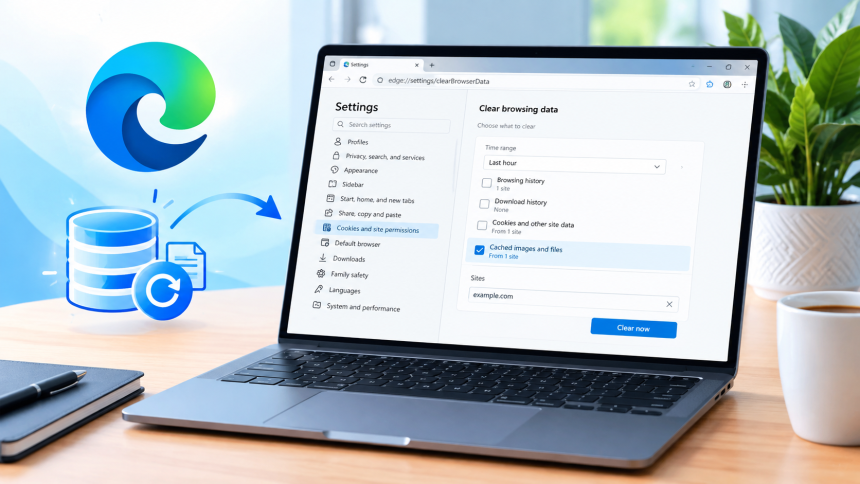
My first instinct used to be nuking the entire browser cache and honestly, that’s overkill nine times out of ten. If you just need to clear cache for one site in Microsoft Edge, you don’t have to wipe your saved logins, your reading history, or anything else that took you months to build up.
I’ve spent way too many late nights troubleshooting sites that refuse to update, so I’ve picked up a handful of ways to do this — some quick, some a bit more technical. Here’s the full rundown, no fluff, no assuming you already know what DevTools even is.
What I’ll walk through below covers way more ground than the usual three-step tutorial you’ll find elsewhere the standard Settings method that fixes most cases, the DevTools route for stubborn web apps and service workers, mobile-specific steps for Android and iOS, a handful of real-world scenarios matched to their actual cause, and a simple decision path for when you’re not sure which approach to try first.
If you’ve only got two minutes, skip straight to Method 1 below it solves the majority of cases on its own.
Why Full Cache Clearing Is Usually the Wrong Move
Before we get into the how, let’s talk about the why for a second, because I think this gets skipped constantly.
Wiping everything costs you more than it fixes
Clearing your entire browsing history and cache in Edge signs you out of every site you’re logged into, resets saved preferences across the board, and can slow down page loads temporarily while everything rebuilds from scratch. That’s a rough trade-off just because one shopping site won’t show your updated cart or one dashboard keeps loading an outdated chart.

One stubborn site rarely means a browser-wide problem
In my experience, when a single page misbehaves, it’s almost always that specific site’s cached files or cookies causing the mess not some deep, systemic issue with Edge itself. Treating it like a browser-wide emergency is like repainting your whole house because one wall has a smudge.
Method 1: Clear Site Data Through Edge Settings
This is the one I reach for first, and honestly, it solves the problem probably 80% of the time.
Getting to the right settings screen
Open Edge, click the three dots in the top-right corner, and head into Settings. From there, go to Cookies and site permissions, then select Manage and delete cookies and site data. You can also just type directly into your address bar saves you a couple of clicks if you’re doing this often, which, let’s be honest, some of us are.
Finding your problem site
Once you’re on that page, click See all cookies and site data and use the search box to type in the domain giving you trouble — something like example.com works fine, no need for the full in front. If Edge shows more than one entry for the same domain, expand it; sometimes a site’s data gets split across a couple of related listings.
Deleting it cleanly
Click the trash icon next to that specific site, or expand the entry and remove individual stored items if you only want to nuke part of it. This step clears out cookies, local storage, and cached files tied to that domain, which handles most stale-content headaches. Reload the page after, and you should see it pull fresh data.
Method 2: Use DevTools for Stubborn Web Apps
Here’s the thing most people miss Settings-level clearing doesn’t always touch everything, especially on modern web apps and progressive web apps that use something called Cache Storage.
Why this happens on certain sites
If a site is built as a single-page app or PWA, it might be serving files through Cache Storage and service workers rather than the regular browser cache. That’s a separate storage bucket entirely, and Edge’s Settings page doesn’t always reach into it the same way.
Opening the right panel
Navigate to the misbehaving site, then press F12 (or Ctrl+Shift+I) to open DevTools. Click over to the Application tab, and in the left sidebar you’ll find Cache Storage. Expand it, and you’ll usually see one or more cache entries listed by name the naming varies depending on what framework the site’s built with, so don’t expect it to say “cache” in plain English.
Clearing it out
Right-click the entry (or select it and hit the delete icon, depending on your Edge version) to clear it. Then reload the tab. If the site still won’t budge, there might be an active service worker re-populating that cache the second you refresh which brings me to the next fix.
Dealing with service workers
Still inside DevTools’ Application tab, scroll down to Service Workers. If you see one listed as active for that site, click Unregister. This stops it from intercepting requests and quietly serving old content behind the scenes. I’ve lost more time than I’d like to admit chasing a “cache” problem that was actually a stuck service worker the whole time.
Method 3: A Quick Hard Refresh for Testing
Sometimes you don’t need a permanent fix you just want to see the current version of a page right now, without deleting anything.
With DevTools open, go to the Network tab and check the box for Disable cache. Then do a regular reload while that tab stays open. This forces Edge to skip the cache entirely for that session, though the moment you close DevTools, normal caching resumes. It’s not a real fix, more of a diagnostic trick useful for confirming whether cache is actually the culprit before you go deleting things.
Method 4: Clear Cookies Specifically, Not Everything Else
Cache and cookies get lumped together constantly, but they’re not quite the same thing, and sometimes cookies alone are the actual problem — think login loops or a site stuck remembering an old region setting.
When this matters more than cache
If you disconnected from a VPN and a site still thinks you’re browsing from somewhere else, or you’re stuck in a weird logged-in-but-broken state, cookies are usually the real issue rather than cached images or scripts.
Same settings path, different focus
You’ll follow the same route as Method 1 — Settings, Cookies and site permissions, Manage and delete cookies and site data — but this time you’re specifically targeting the cookie entries for that domain rather than assuming it’s a caching problem. Delete those, reload, and you’ll often get logged out and given a clean slate for that one site.
Method 5: The InPrivate Window Test
Before you go clearing anything at all, it’s worth checking whether the problem is even on your end.
Open an InPrivate window (Ctrl+Shift+N) and load the same site. If it looks fine there, cache or cookies on your main profile are almost certainly the cause, and one of the methods above will fix it. But if the site looks broken in InPrivate too where there’s no stored cache or cookies to speak of the problem’s probably sitting on the website’s server, its CDN, or a caching layer entirely outside your control.
I’ve wasted a genuinely embarrassing amount of time clearing my own browser data for issues that turned out to be the site’s problem all along.
Method 6: Check for a Misbehaving Extension
This one’s easy to overlook, but certain extensions ad blockers, privacy tools, script managers can interfere with how a page loads and get mistaken for a caching issue.

Temporarily disable your extensions, or test in that same InPrivate window (which usually runs without extensions by default), and reload the site. If it suddenly behaves, you’ve found your actual culprit, and no amount of cache-clearing was ever going to fix it.
A Few Things Worth Knowing Before You Start
Sync can spread the change further than you expect
If Edge sync is turned on, clearing site data on one device can carry over to other synced devices too, since Microsoft’s sync feature shares browsing data across your signed-in profile. If you specifically want the cleanup limited to the computer you’re sitting at, turn sync off first, do the cleanup, then turn it back on.
Watch out for domain variations
Something that trips people up constantly: example.com and www.example.com can show up as two separate entries in Edge’s site data list. Clear one, and the other might still be quietly holding onto old cookies or cached files. Same goes for subdomains app.example.com isn’t automatically covered by clearing example.com.
Double-check your Edge profile
If you use multiple Edge profiles work versus personal, say clearing data in one profile has zero effect on the others. It sounds obvious written out, but I’ve genuinely cleared the wrong profile before and spent ten confused minutes wondering why nothing changed.
Why Browsers Cache Things in the First Place
Might as well cover the basics quickly, since understanding this makes the whole troubleshooting process click a lot faster.
Every time you load a page, your browser downloads a bunch of stuff images, scripts, stylesheets, fonts and rather than re-downloading all of it on your next visit, it stores a local copy. That’s the entire point of caching: speed. A cached page loads almost instantly compared to fetching everything fresh over the network.
The trade-off is that when a website updates its files, your browser doesn’t always know to grab the new version right away, so it keeps happily serving you the old one until something forces a refresh. That’s the exact tension behind basically every “why won’t this site update” complaint you’ll ever run into.
Clearing Cache for One Site on Mobile Edge
Since a lot of people run Edge on their phone too, it’s worth covering this separately the interface looks different, but the underlying logic is the same.
On Android
Open the Edge app, tap the three dots at the bottom, and go into Settings. From there, tap Privacy and security, then Clear browsing data. Mobile Edge doesn’t always offer the same granular per-site list you get on desktop, so your best bet on a phone is often the InPrivate tab test open the site in an InPrivate tab first to confirm it’s actually a local caching issue before doing anything more drastic.
On iOS
The path’s similar: tap the three dots, go to Settings, then Privacy and security, and look for the option to clear browsing data. iOS Edge tends to be even more limited on granular site-level controls compared to Android or desktop, largely because of how Apple restricts browser engines on the platform. If a per-site fix isn’t available, InPrivate testing is genuinely your most reliable diagnostic tool there.
Specific Scenarios and What They Usually Mean
Different symptoms tend to point toward different root causes, so let’s match a few common complaints to their likely fix.
A login loop that won’t let you in
You enter your credentials, it looks like it’s working, then it just bounces you back to the login screen. This is almost always a cookie issue an old or corrupted session cookie fighting with a fresh login attempt. Clear cookies for that specific domain rather than reaching for the cache-clearing route first.
Product prices or inventory that never update
An online store showing an old price or “in stock” on something that’s actually sold out usually points to cached page content rather than cookies. Method 1, clearing site data through Settings, is your best first move here.
A dashboard or app stuck on old data
If it’s a web-based tool a project management dashboard, a banking portal, anything that feels more like an app than a simple webpage there’s a decent chance it’s using Cache Storage and service workers under the hood. That’s when Method 2’s DevTools approach earns its keep.
Images that refuse to update after a site redesign
Sometimes a business updates its logo or product photos, and visitors keep seeing the old version for days. That’s typically a straightforward image cache issue, and it usually clears up with the standard Settings method, though occasionally it’s actually the site’s CDN taking its time to propagate the new files which loops back to that InPrivate test being worth doing first.
A Quick Note on Doing This in Chrome Too
Since Edge and Chrome share the same underlying Chromium engine, it’s worth knowing the process barely changes if you ever switch browsers or need to fix the same issue somewhere else. Chrome uses the same chrome://settings/content/all style page for managing site data, with a nearly identical search-and-delete flow.
If you’ve got both browsers installed and a site’s misbehaving in one but not the other, that’s actually a handy diagnostic on its own it usually confirms the issue is local caching rather than something broken on the website’s end, since a server-side problem would typically show up in both.
If You’re Managing Edge Across Multiple Devices or Users
This part’s more for anyone handling IT support or managing a shared or work computer, but it’s worth a mention.
Group policy can override manual clearing
In managed business environments, IT admins can configure Edge through Group Policy to automatically clear certain types of site data on browser exit, or to prevent users from clearing specific data categories at all.
If you’re on a work machine and none of the steps above seem to actually do anything, it’s worth checking with your IT department before assuming you’re doing something wrong.
Clearing data doesn’t always sync intentions across devices
Worth repeating from earlier because it trips people up in shared or managed setups specifically: if sync is active, someone clearing site data on their laptop might inadvertently affect the same signed-in profile on a tablet or second machine.
In a household or small office where a Microsoft account gets shared across devices, that’s worth flagging to whoever else might be logged in.
Keyboard Shortcuts Worth Memorizing
Before diving into the full settings-based methods, a couple of keyboard shortcuts solve a surprising chunk of “this site looks wrong” complaints without touching any settings at all.
The classic hard refresh
Pressing Ctrl+F5 or Ctrl+Shift+R forces Edge to bypass its cache for that single page load and fetch everything fresh from the server. It’s not a permanent fix the cache repopulates right after but it’s the fastest way to check whether stale cache is even the actual problem before you go clicking through menus.
A plain refresh often isn’t enough
Just hitting the regular refresh button or F5 usually pulls the HTML fresh but still leans on cached images, scripts, and stylesheets. That’s exactly why a normal refresh sometimes “doesn’t work” even though you just reloaded the page it wasn’t actually skipping the cache in the first place.
How Often You Should Actually Be Doing This
I get asked this more than you’d expect, so let’s settle it plainly: there’s no set schedule here, and honestly, routinely clearing cache for sites that are working fine is a waste of your time.
Reactive, not preventive
This is a “fix it when it’s actually broken” tool, not a maintenance chore you add to some weekly routine. Clearing cache proactively for a site that’s loading correctly gains you nothing you’re just forcing your browser to re-download files it already had, which slows things down temporarily for zero benefit.
The exception: sites you’re actively developing or testing
If you’re a developer or you manage a website yourself, that’s a different story you’ll want to clear cache or use the Disable cache option in DevTools regularly while testing changes, since you specifically need to confirm visitors are seeing your latest updates rather than a cached older version.
A Simple Way to Decide Which Method to Use
With six different approaches covered, it helps to have a rough decision path rather than guessing which one to try first.
Start with the InPrivate window test it costs nothing and immediately tells you whether the issue is local or on the site’s end. If InPrivate looks fine, head to Method 1 and clear that domain’s site data through Settings; that alone resolves the vast majority of stale-content complaints.
If the site’s clearly a web app or PWA and Method 1 didn’t fully fix it, move to DevTools and clear Cache Storage, checking for a lingering service worker while you’re in there.
If it’s specifically a login or region-detection issue rather than visual staleness, jump straight to the cookie-focused approach instead of bothering with cache at all. And if you’ve tried everything and the site still looks wrong in InPrivate too, stop blaming your browser that one’s on the website.
Common Mistakes That Waste Your Time
A few things I see people (myself included, more than once) get wrong when trying to fix this.
Clearing the wrong domain variant
Deleting data for example.com while the actual problem lives on www.example.com or a subdomain means you’ll swear you “already tried that” when you technically didn’t touch the right entry at all.
Forgetting to actually reload the page
Clearing site data doesn’t retroactively fix the tab that’s already open. You need an actual reload afterward, and sometimes even a full page close-and-reopen if the tab’s holding onto something particularly stubborn in memory.
Assuming cache when it’s actually a browser extension
I mentioned this earlier, but it deserves repeating because it’s such a common trap people clear cache repeatedly, get frustrated when nothing changes, and never think to test with extensions disabled even once.
Skipping the InPrivate check entirely
This is the step people jump past most often, and it’s the one that would’ve saved them the most time. Five seconds in an InPrivate window tells you exactly which direction to go instead of blindly trying methods in sequence.
When None of This Actually Fixes the Problem
I’ll be straight with you: sometimes clearing cache, cookies, and site data does absolutely nothing, and that’s genuinely useful information, not a failure on your part.
A stale page isn’t always a local browser issue. The website’s own server-side cache, a CDN sitting in front of it, or a bug in how the site itself was built can all serve old content regardless of what’s stored on your machine.
If the same outdated version shows up on a completely different device or a different browser entirely, that’s a strong sign the problem lives on the site’s end, not yours and no amount of clicking through Edge’s settings is going to fix that.
Frequently Asked Questions
Does clearing cache for one site log me out of it?
Usually, yes. Clearing site data typically removes cookies along with cached files, which means active sign-in sessions get wiped too you’ll need to log back in afterward.
Will this affect other websites I have open?
No, as long as you’re targeting a specific domain through the site data page rather than using the general Clear browsing data option, other sites stay completely untouched.
Why does the site still look old after I cleared everything?
It’s likely a service worker still active in the background, or the stale content is actually being served from the site’s own server or CDN rather than your local cache.
Is there a faster way than digging through Settings every time?
Typing edge://settings/siteData directly into your address bar skips a few menu clicks and gets you straight to the right page.
Does this work the same way on Mac as it does on Windows?
Yes, the Chromium-based Edge browser uses the same settings structure across Windows, macOS, and Linux, so the steps here apply regardless of which one you’re on.
What’s the difference between a hard refresh and clearing site data?
A hard refresh (Ctrl+F5) only bypasses cache for that single page load and doesn’t delete anything the cache rebuilds right after. Clearing site data actually removes the stored files and cookies until the site re-downloads them.
Can clearing cache for one site break how it looks temporarily?
Yes, briefly. The first reload after clearing has to fetch everything fresh, so you might notice a slightly slower load or a flash of unstyled content before everything settles back to normal.
Is it safe to clear site data for a banking or financial site?
Generally yes, though expect to be logged out and possibly need to re-verify your identity through two-factor authentication afterward, since those sites tend to rely heavily on session cookies for security.
Final Thoughts
Honestly, once you know where Edge tucks away its per-site data, this stops being some mysterious troubleshooting ritual and turns into a thirty-second habit. Start with the Settings method for most everyday stale-page annoyances, and only reach for DevTools when you’re dealing with a stubborn web app that just won’t let go of its old files.
Give it a shot next time one site’s acting up on you, and if it still won’t cooperate after all that, don’t be afraid to just shrug and blame their server instead of your browser. GroovyPost’s walkthrough on clearing cookies for a specific site in Edge.